1. Start and add your first pet
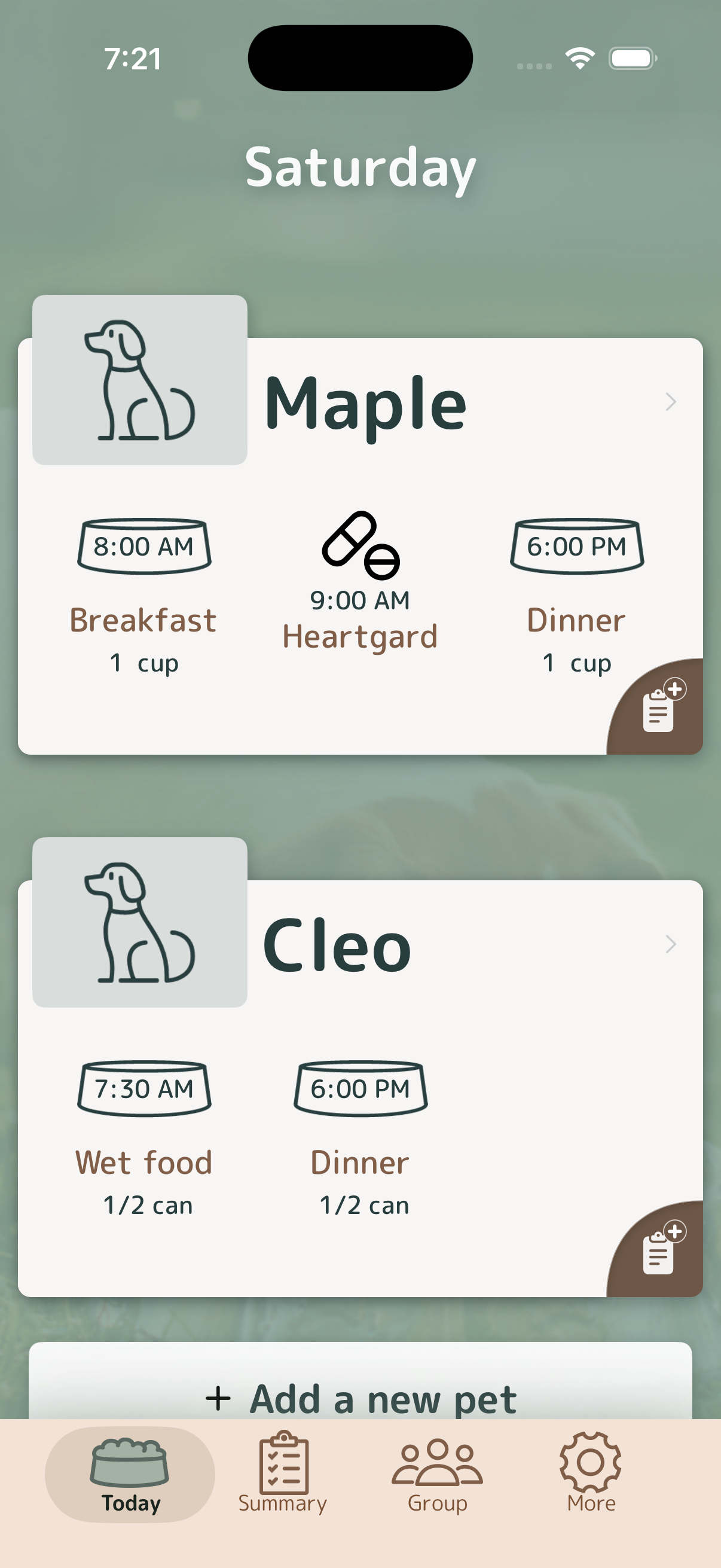
Open Meal Time and choose to continue as a guest or sign in. On Today, tap “Add a new pet,” enter the details you need, and save. Today is the main place to check what each pet needs.
2. Schedule a meal, medication, or care action
Open the pet and add an action. Choose its type, name, time, amount or measurement where relevant, and weekly recurrence or a scheduled pattern. Add notes for important instructions, then save. Scheduled actions describe care you expect to do later.
Back to top3. Log today’s care
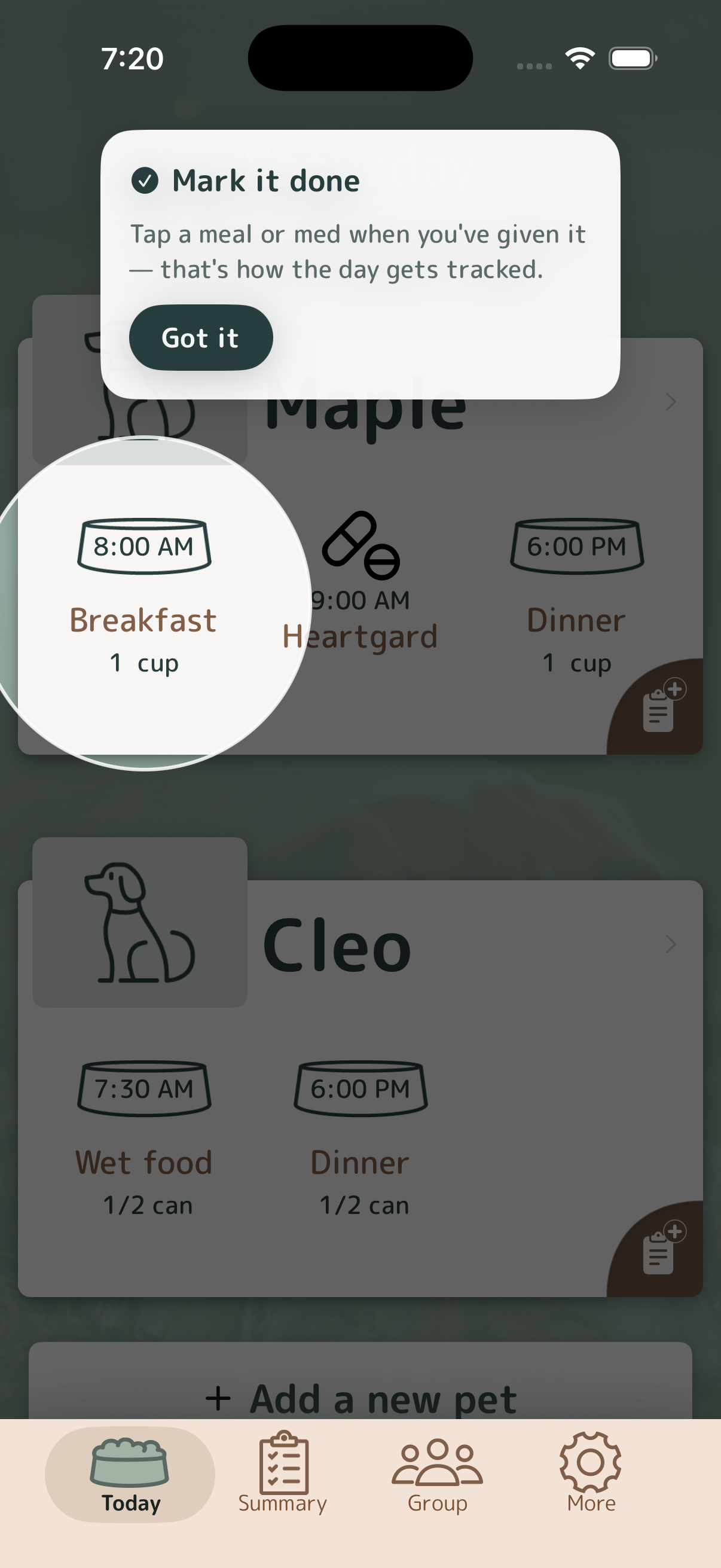
On Today, tap the action after care is complete. If you need to reflect a different outcome, use the action’s outcome menu. Check the pet, action, and date before recording anything.
Back to top4. Use Quick Log for care that already happened
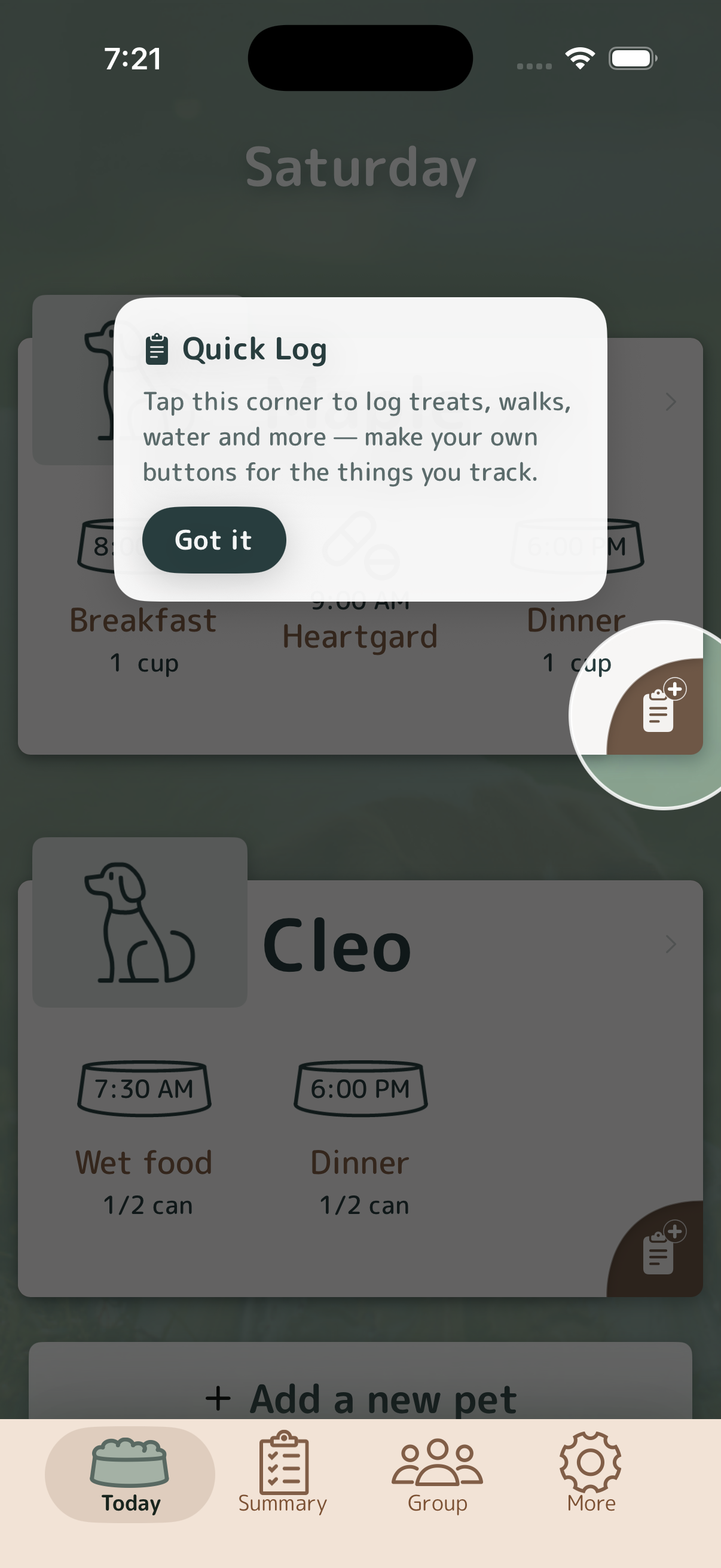
Quick Log is for one-off events such as treats, snacks, walks, water, or other care. Create named, icon-based buttons that match your routine, then tap one when the event happens. Unlike a scheduled action, Quick Log does not create a future reminder.
Back to top5. Review history and trends
Open Summary to review recent activity, missed items, weekly completion, and available appetite and weight records. Use it to communicate with other caregivers or prepare questions for your veterinarian; it does not replace veterinary advice.
Back to top7. Check reminders, account, and help
In More, review notifications and weekly email, your account, privacy, and feedback. If a reminder does not arrive, check both the app preference and iOS Settings > Notifications, then verify the action’s schedule, pet, and date.
Back to top8. Add “Good to know” notes for caregivers
When editing a pet profile, find “Good to know” in the pet information and add brief details that will help a caregiver, such as preferences or practical instructions. Tap “Done” to close the note editor, then tap “Save” to save the pet profile. The notes appear in the “Good to know” box on the PDF Care Instructions report. For pets in a shared group, the note is shared when the profile syncs.
Back to top